A dim screen is a different display state
Always-On Display lets supported iPhones keep a dimmed Lock Screen visible. That low-power state is not the same as a fully awake screen. iOS changes the presentation and limits animation while the display is dim.
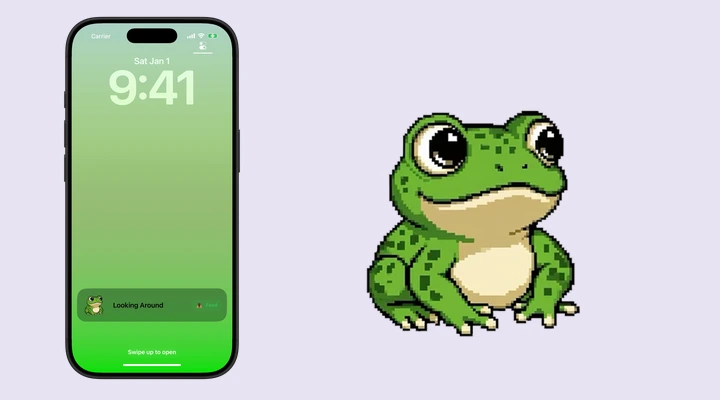
Feed The Frog shows a still image while the Always-On Display is dimmed. If your frog stays visible but stops moving only in that state, it is behaving normally.
Make a quick comparison
- Open Feed The Frog and start its Live Activity.
- Choose an animation available to you.
- Lock the iPhone and let the display dim.
- Observe the still frog, then tap or raise the phone to wake the screen.
- Compare the awake Lock Screen with the dimmed one.
You do not need to change the animation selection or buy a different pack to address a still frog in Always-On mode. Premium access and display behavior are separate things.
Still, sleeping, or missing?
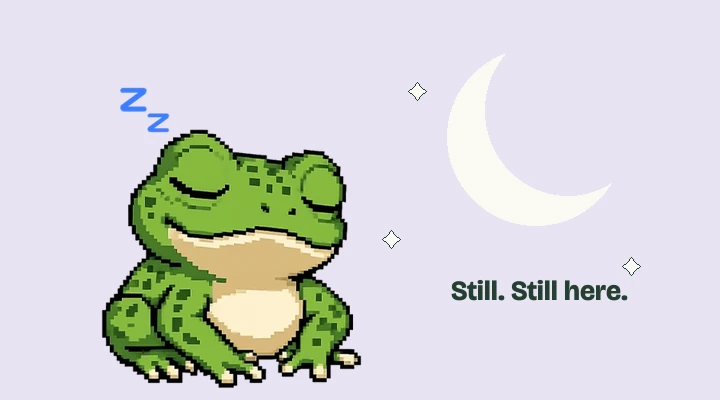
A sleeping frog is one of the five animation choices. A still frog is a frame that is not changing. A missing frog means no activity is visible. Those three situations need different explanations.
If you selected Sleeping and see sleep marks, check the selected animation in the app. If the frog is present while dimmed, wake the screen. If no frog appears on either screen, check Live Activities permission and follow the missing frog checklist.
Always-On Display is optional
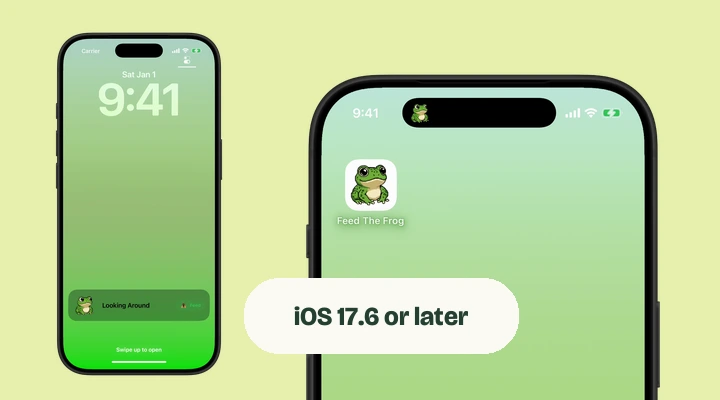
An iPhone does not need an Always-On Display to use Feed The Frog. A supported phone can show the Lock Screen activity when you wake the screen. Dynamic Island support is another separate hardware requirement.
This distinction is useful when choosing an experience for an older iPhone: the absence of a dimmed, continuously visible Lock Screen does not remove the normal awake Lock Screen experience. Our compatibility guide separates each requirement.
What this means for battery expectations
The system’s animation limits help explain why an Always-On view behaves differently. They do not establish a measured battery cost for Feed The Frog. Actual battery use depends on the phone, settings, other activity, and how you use the app.
Use the frog when you enjoy having it around, and turn the app’s Live Activity switch off when you want to end the session. If you report a problem, tell support whether it happened with the screen awake, dimmed, or completely off. That single detail makes the report much easier to understand.
More about iPhone features
Say hello to your frog.
Try the preview, then bring a little company to your iPhone.
Download on theApp Store