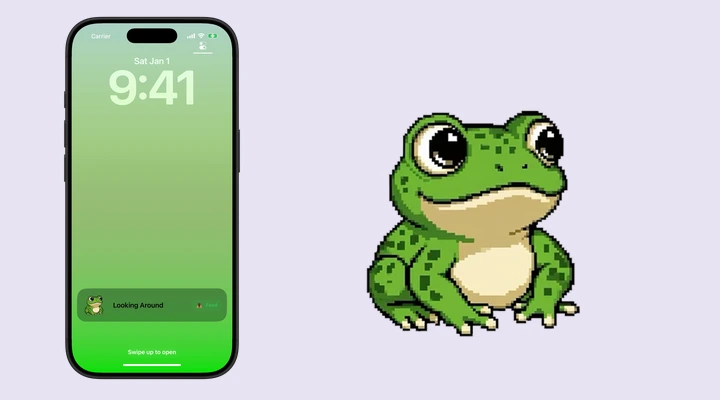
A Lock Screen pet is a Live Activity
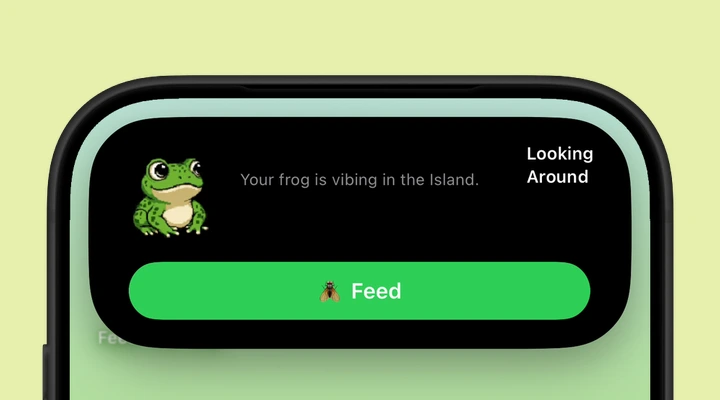
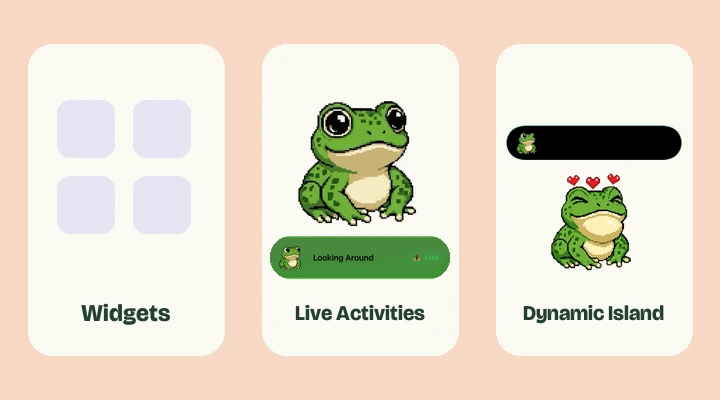
The frog sits in a Live Activity on your Lock Screen. It is separate from your wallpaper and from the small widgets you add near the clock. You do not need to replace a photo you love or redesign your entire Lock Screen to use it.
Feed The Frog requires iOS 17.6 or later. The Lock Screen experience does not require Dynamic Island hardware. That makes it the useful option for an older supported iPhone with a notch or a Home button.
Start the Lock Screen activity
- Install Feed The Frog and launch the app.
- Choose an available animation. Blinking works from the start.
- Turn on the Dynamic Island switch in the app. It controls the Live Activity on both surfaces.
- Allow Live Activities if prompted.
- Lock your iPhone, then wake the screen to see your frog.
Depending on your iOS version, you can find the permission in Settings, then Apps, Feed The Frog, and Live Activities. On older versions, the app’s settings may be listed directly in the main Settings screen. Labels can change between iOS releases.
Feed from the Lock Screen
When feeding is available, tap Feed in the frog’s Live Activity. The frog catches a fly, and a successful feed counts toward your progress. A countdown means the frog is still in its feeding cooldown. Wait for it to finish before feeding again.
The Live Activity is designed for a quick check-in. To browse the animation collection, review your progress, or restore a purchase, open the app. Those larger tasks belong on the full screen.
What happens when the display dims
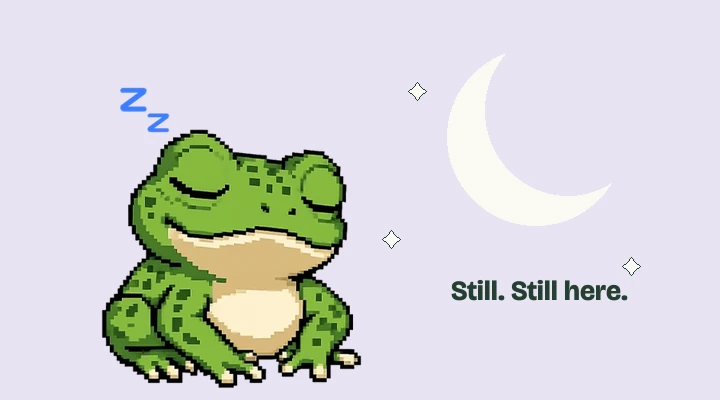
On an iPhone with Always-On Display, the frog can appear as a still image while the display is dimmed. Wake the screen to see the active presentation. A still frog in that state is expected behavior, not a failed animation.
iOS limits animation on the Always-On Display to preserve battery life. The app’s version 1.1 release notes specifically describe a still-image frog in this state. Our Always-On Display guide explains what to expect.
Keep the session in mind
A Live Activity is a session rather than a permanent decoration. You can dismiss it, and iOS can end it. Apple documents up to eight hours of active time, with the ended activity potentially remaining on the Lock Screen for up to four more hours. It may disappear sooner if you remove it.
Reopen Feed The Frog when you want a fresh session. If nothing appears, check that the app switch and system permission are both enabled. Our missing frog checklist covers the next steps without asking you to reset your phone or erase your progress.
More about iPhone features
Say hello to your frog.
Try the preview, then bring a little company to your iPhone.
Download on theApp Store