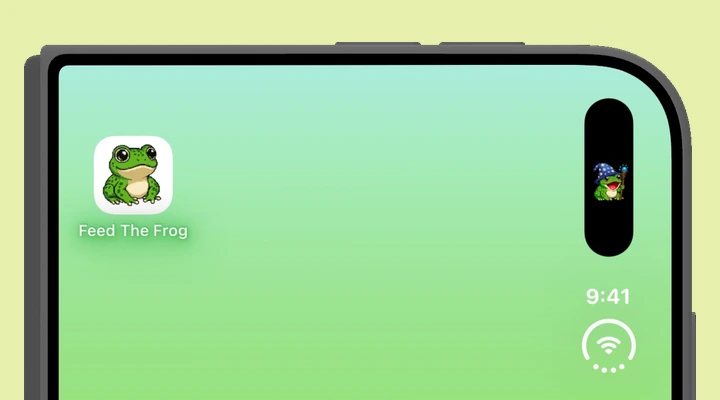
Where your frog appears on iPhone Duo
iPhone Duo has an outer display for using the phone closed and a larger inner display when you open it. Its Dynamic Island uses a vertical presentation along the side of both displays. It can expand to show a Live Activity and its controls.
That means you should look toward the edge of the screen for your frog, rather than expect the same horizontal shape shown in a regular iPhone screenshot. The phone changes the presentation to suit the display you are using. The frog remains part of a Live Activity, alongside the full experience inside Feed The Frog.
Start your first frog on Duo
- Open Feed The Frog on your iPhone Duo.
- Turn on the Dynamic Island switch in the app.
- Choose an available animation. Blinking is ready from the start.
- Allow Live Activities if iOS asks.
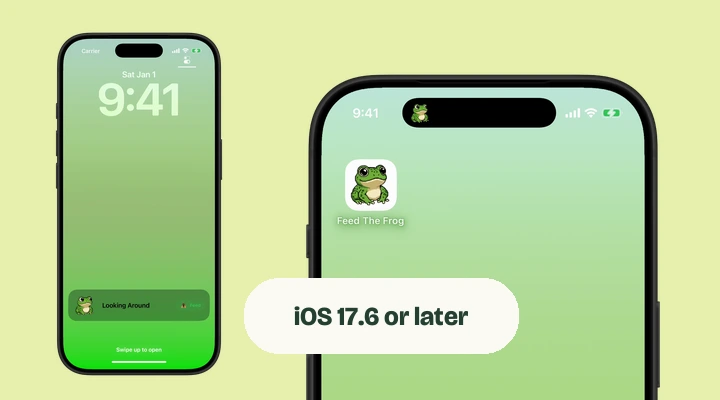
- Return to the Home Screen and look for the frog in the Island along the side.
You can also lock the phone and wake its screen to see the Lock Screen activity. You do not need to add a widget or change your wallpaper. The switch in Feed The Frog starts the Live Activity used for both experiences.
Using your frog with the phone open or closed
Use Feed The Frog on whichever display suits the moment. You might check the frog with the phone closed, then open it to browse the animation collection. The app gives you the same feeding progress and animation choices as you move between displays.
Expect the surrounding iPhone controls to move too. Duo uses its display edges for more system controls, so the layout is intentionally different from a conventional iPhone. A vertical Island is part of that design. It does not mean you need a separate frog app or a different premium pack.
Expand the activity to feed your frog
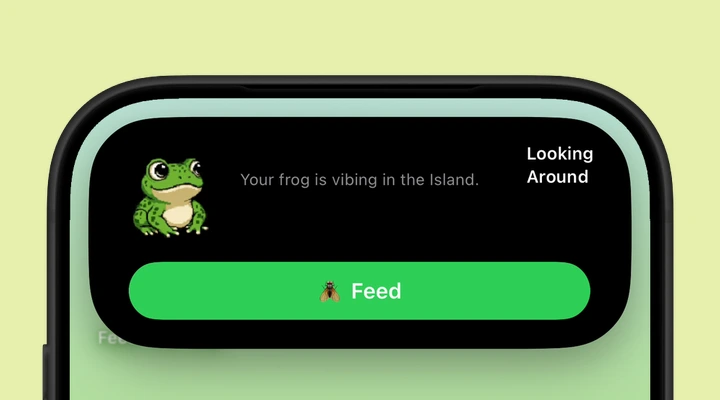
Touch and hold the Dynamic Island to see the expanded activity. When the frog is ready, tap Feed. A successful feed adds to your progress. If you see a countdown, the feeding cooldown has not finished yet.
To change the selected animation or see the next milestone, open Feed The Frog. Looking Around unlocks at five total feeds. Sleeping, Catching Fly, and Wizard Staff have later milestones and also need the optional All Frog Packs purchase for Live Activity selection. The animation guide explains the full collection.
If the frog is not where you expected
Check the side of the current display first, then the Lock Screen. Other Live Activities can share the available Island space. Expand the activity to see more detail, or reopen Feed The Frog when you want to start a fresh session.
If no frog appears, check that Live Activities are allowed for Feed The Frog in iPhone Settings and that the app’s switch is on. A still frog on a dimmed Always-On Display is expected. If you need help, tell us whether you were using the outer or inner display and whether the phone was open or closed. Our missing frog guide covers the other common causes.
A few more questions
Do Dynamic Island apps work on iPhone Duo?
Yes. iPhone Duo supports Dynamic Island and Live Activities on its outer and inner displays. The Island runs vertically along the side. The details and controls you see depend on the app and the activity.
Do I need to buy another frog pack for iPhone Duo?
There is no separate Duo pack. Feed The Frog uses the same animation collection and optional All Frog Packs purchase. If you already purchased the pack with the same Apple Account, use Restore Purchases in the app when needed.
More about iPhone features
Say hello to your frog.
Try the preview, then bring a little company to your iPhone.
Download on theApp Store